Here is a step by step instruction on how to insert photos into a single post. Hopefully, it helps.
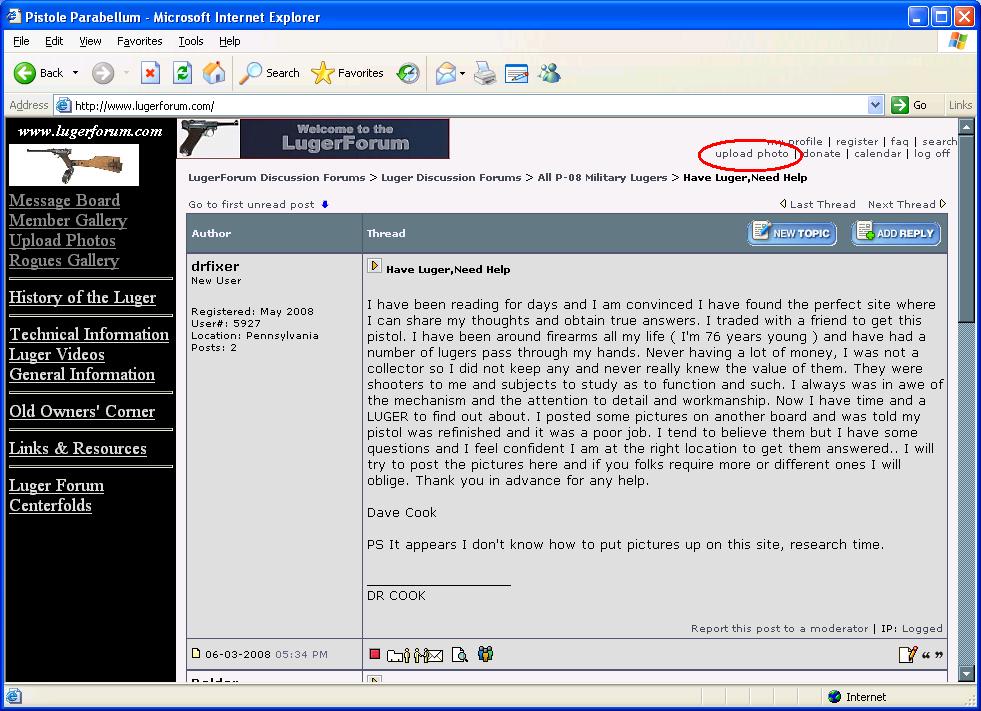
1) Click on "upload photo" on the top-right corner of the page:
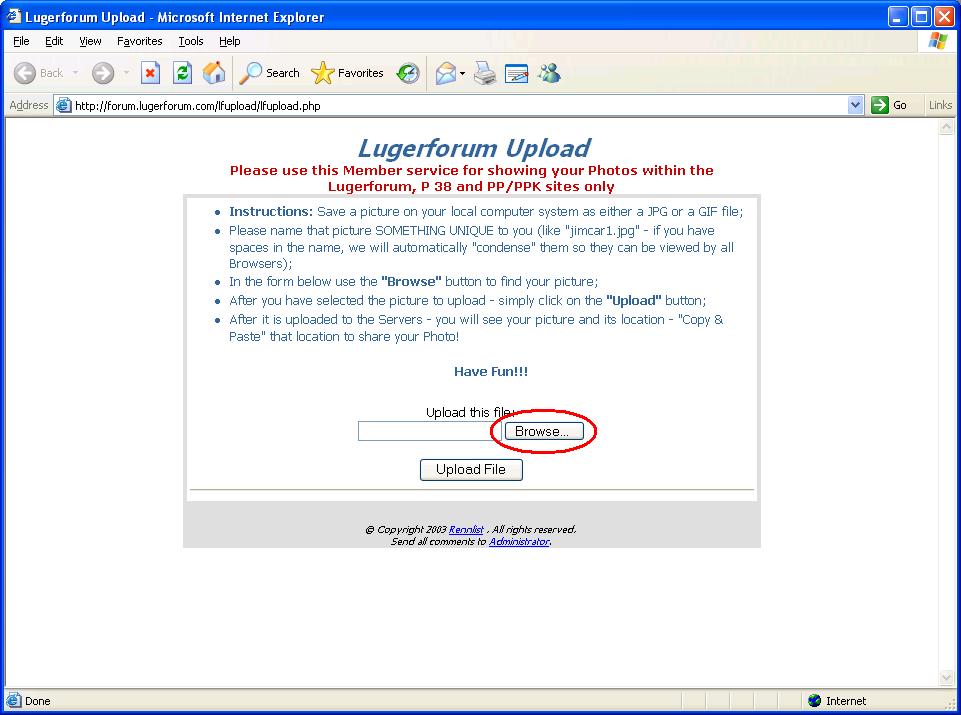
2) A new window pops up asking for the picture to upload, click on the "Browse" button:
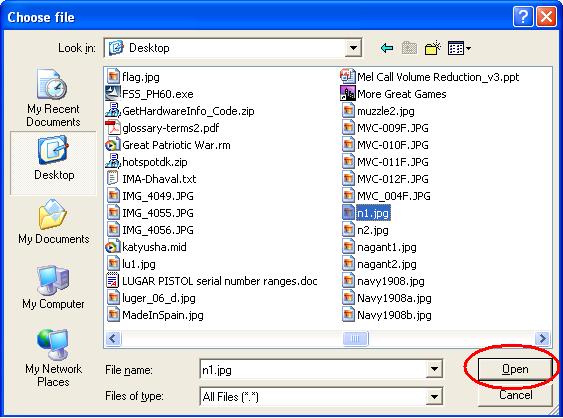
3) Navigate through your computer to find the file to upload, select it, and click on "Open" button. This tiny window disappears after you click the "Open" button.... if you selected the wrong file, click on "Browse" button again and select the right one. Otherwise, continue on next step.
4) Now, you may notice the text box on left is not empty anymore, it's the photo that you will upload. Click on "Upload File" button, and wait, it may take a while to upload the picture.... depends on its size and your Internet connection speed.
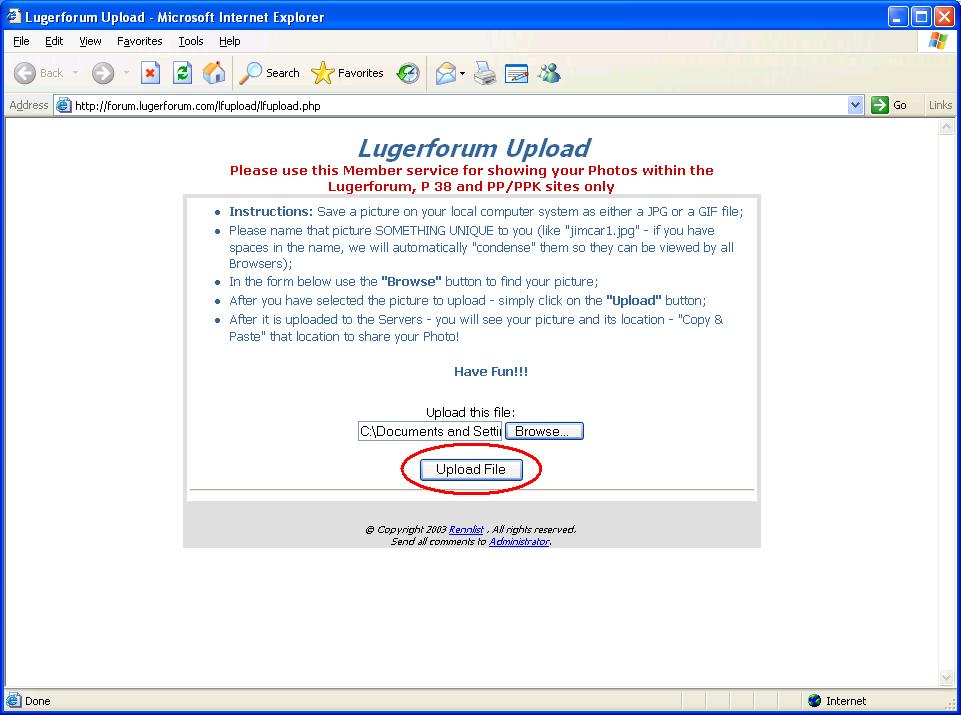
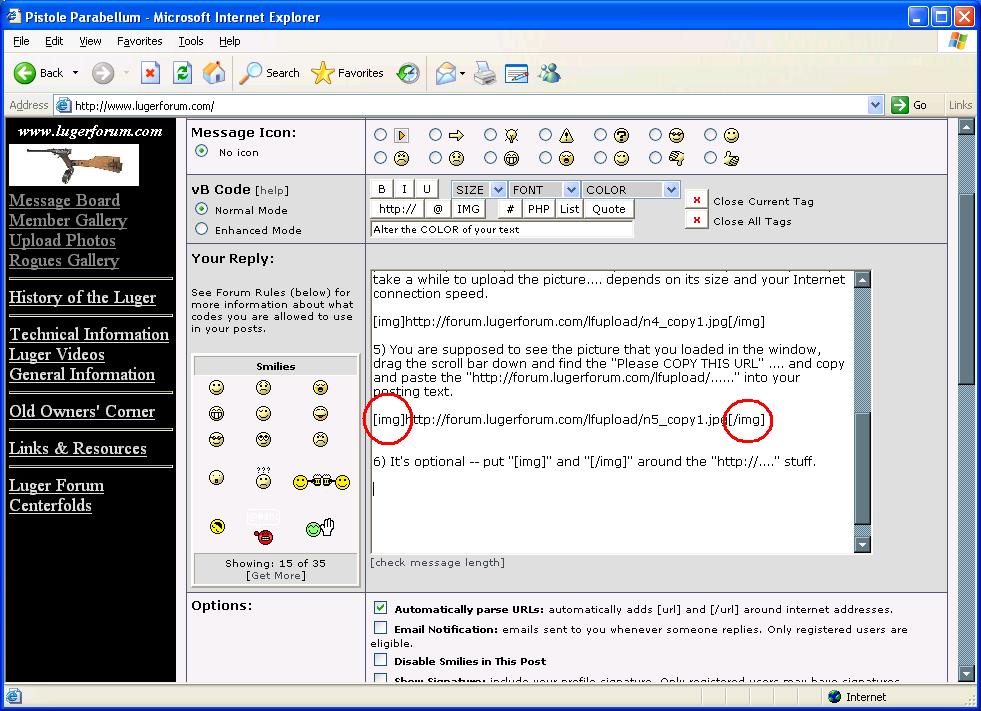
5) You are supposed to see the picture that you loaded in the window, drag the scroll bar down and find the "Please COPY THIS URL" .... and copy and paste the "http://forum.lugerforum.com/lfupload/......" into your posting text.
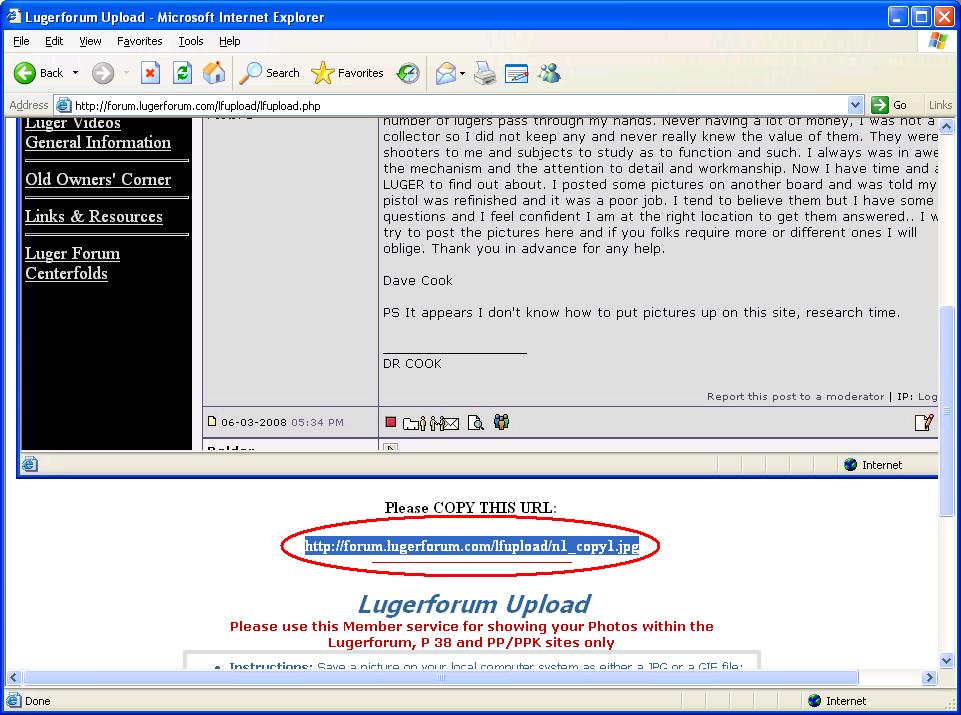
6) It's optional -- put "[img]" and "[/img]" around the "http://...." stuff that you just pasted.